
Build a tool, step by step
A complete worked example — from a blank tool to an agent looking up a real order on a live call.
We'll build the order-status tool from Ways to use tools: the caller gives an order number, the agent tells them where it is. Everything here transfers to any other lookup you want to build.
What you need before you start
Somewhere for the tool to ask. That's usually a web address in your own system that returns order details, plus whatever key or password it needs. If you're not sure whether you have one, that's the question to take to whoever maintains your systems — the rest of this page is the easy part.
Open Tools in the sidebar and create a new one. You're asked where to start first:
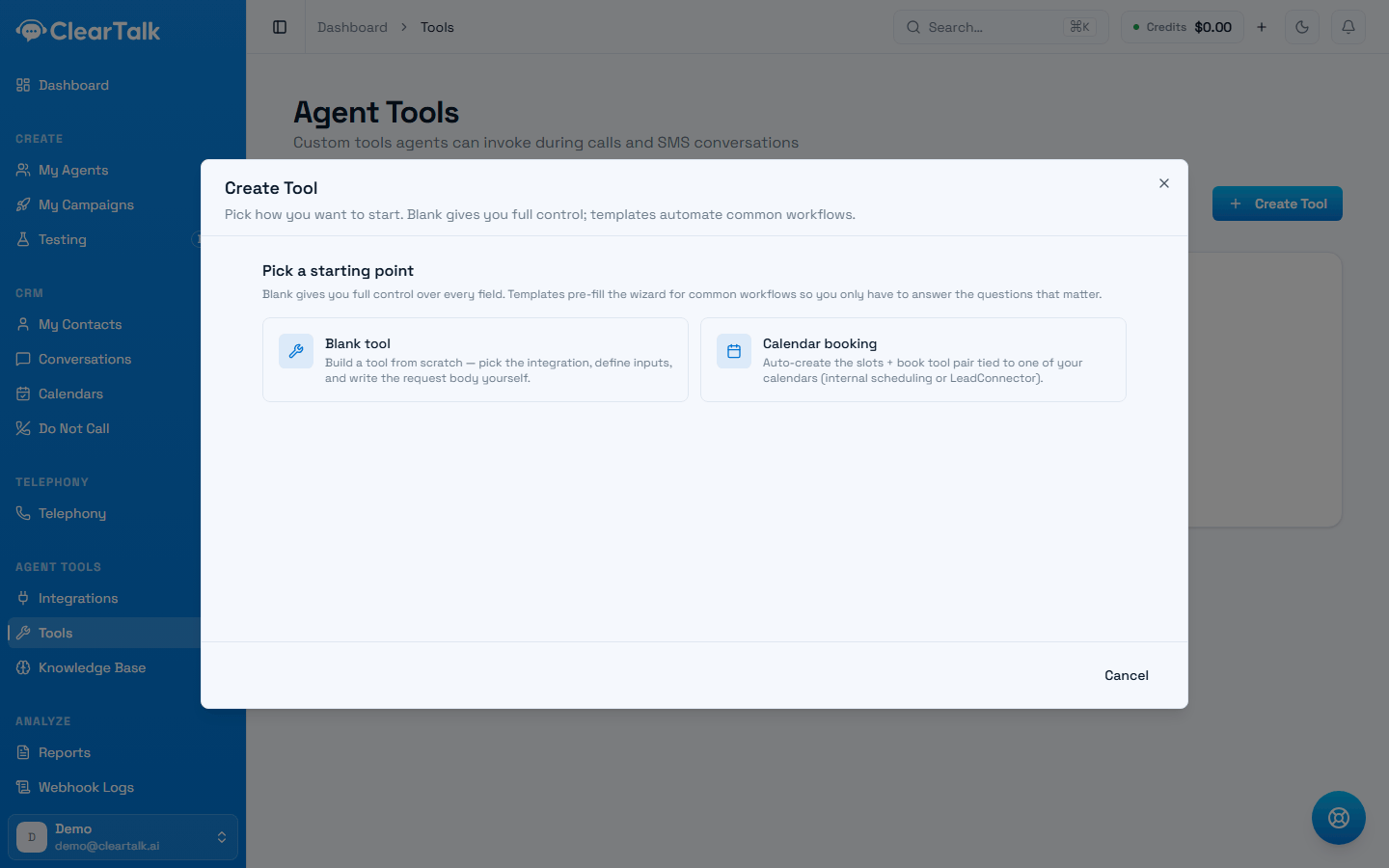
- 1Blank — what this page walks through. You choose the integration and write the request.
- 2The one template. It builds the slots-and-booking pair against a calendar you already have.
Choose Blank tool and the builder walks six steps.
Step 1 — Basics
The name and description. The description is not documentation — it's how the AI decides whether to use this tool, so write it as guidance:
Name: Order status lookup
Description: Use when the caller asks about an existing order — where it is, whether it shipped, or when it will arrive. Requires the caller's order number. Do not use for placing new orders or for cancellations.
Notice the shape: when to use it, what it needs, and when not to use it.
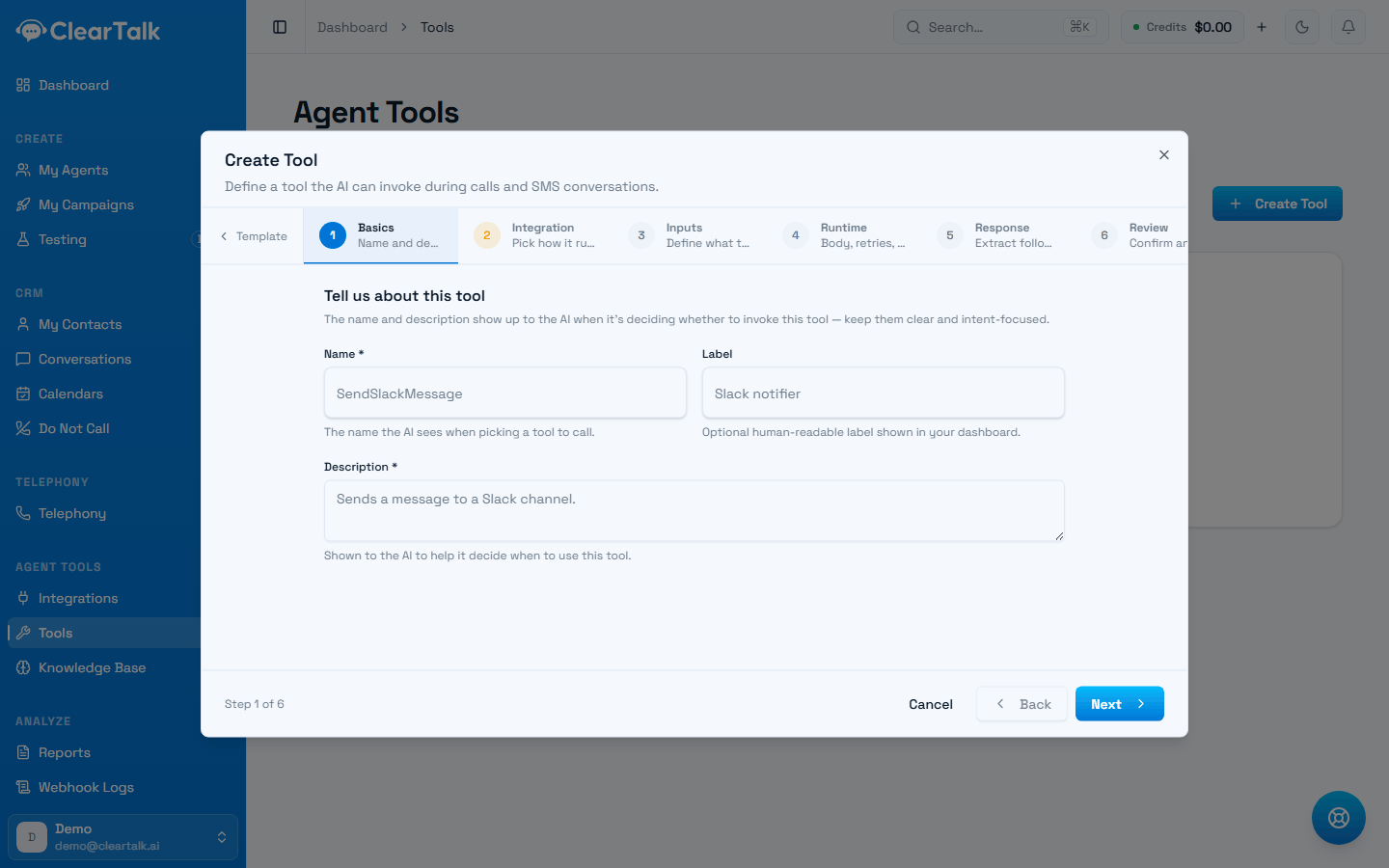
- 1The name the AI sees when it's choosing between tools.
- 2A friendlier label for your own dashboard. The AI never sees it.
- 3The description. This is what decides whether the tool fires at all.
A description the AI can act on
- “Use when the caller asks about an existing order — where it is, whether it shipped, or when it will arrive.”
- “Requires the caller's order number.”
- “Do not use for placing new orders or for cancellations.”
A description that won't fire
- “Order tool”
- “Checks orders in the system”
- “Order status API v2 wrapper”
That last line — when not to use it — matters more than people expect. It's what stops the agent reaching for this tool during a conversation about something else.
Step 2 — Integration
Choose what the tool talks to. Most lookups into your own systems are a direct web request; some integrations (a team chat workspace, for instance) also ask you to pick which connected account to act on.
Step 3 — Parameters
The pieces of information the tool needs. For this one, exactly one:
| Parameter | Description the AI reads |
|---|---|
order_number | The customer's order number, digits only, usually four to six digits |
The description here does real work too — it's how the agent knows what to ask for and what a valid answer looks like. If the caller hasn't said their order number yet, the agent will ask for it in its own words.
Keep the list short. Every parameter is something the agent has to extract or ask for, and each one is a chance to stall the conversation.
Step 4 — Runtime
Where the request is actually assembled, and where you reference your parameters using their names in braces:
{
  "orderId": "{order_number}",
  "includeTracking": true
}
When the tool runs, {order_number} is replaced with whatever the agent gathered.
Two settings on this step matter more than they look:
- What the agent says while it waits. Set something natural — "Let me pull that up for you." Without it, the caller hears silence while the request runs, and silence on a phone call reads as a dropped connection.
- Retries and caching. A retry saves you from a single blip. Caching is worth it for data that doesn't change minute to minute — prices, store hours — and wrong for anything live.
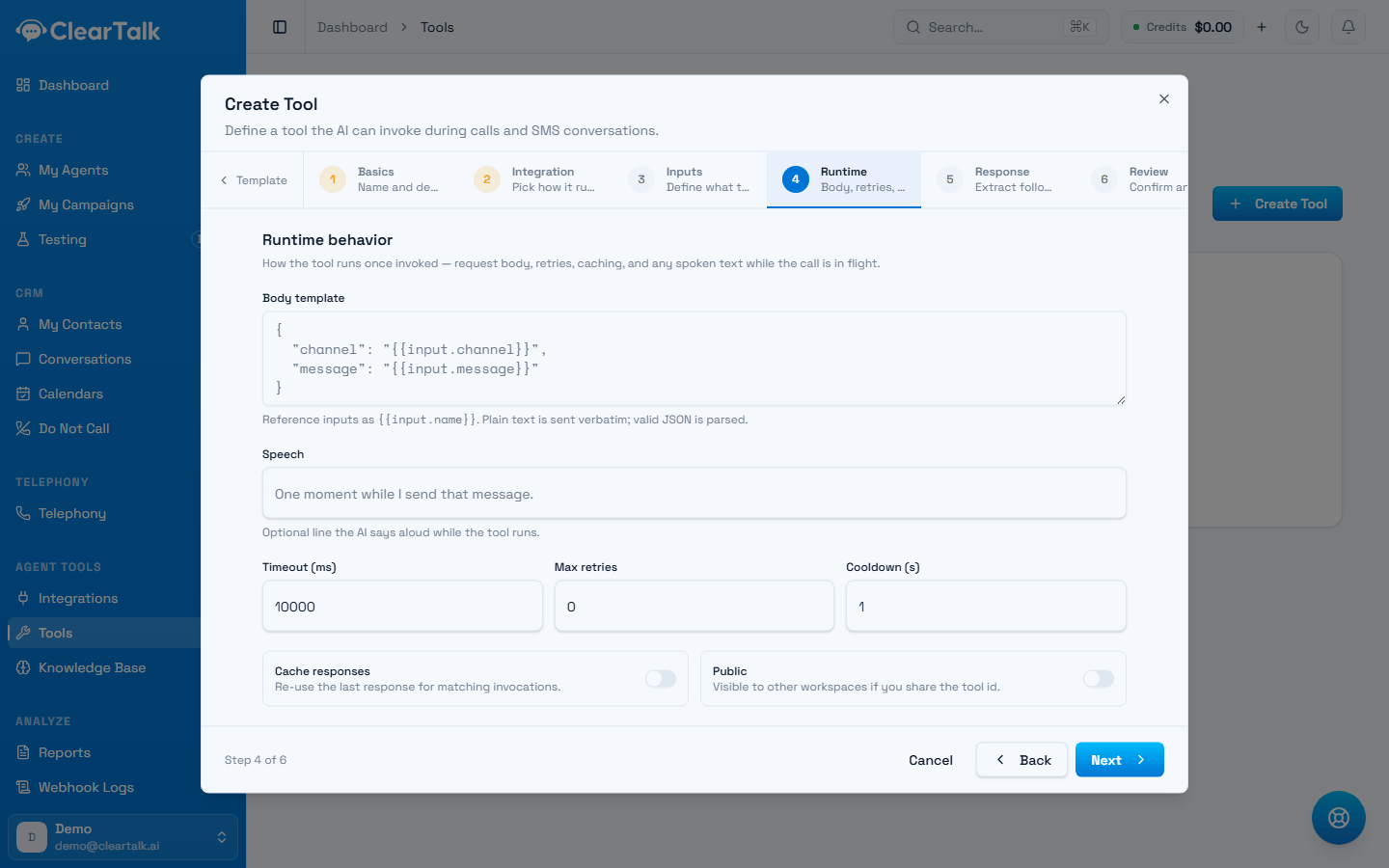
- 1The request body. Parameter names in braces are filled in from what the agent gathered.
- 2What the agent says while it waits. Don't leave this empty.
- 3How long to wait, how many times to retry, and how long before the same call can repeat.
Step 5 — Response
Your system will return more than the conversation needs. Here you name the parts that matter and turn them into variables the agent can use:
| Variable | Taken from the response |
|---|---|
status | the order's current status |
delivery_date | the estimated arrival date |
tracking_url | the tracking link |
Now the agent can say them out loud — "It shipped Tuesday, arriving Thursday" — and a Pathway can branch on them.
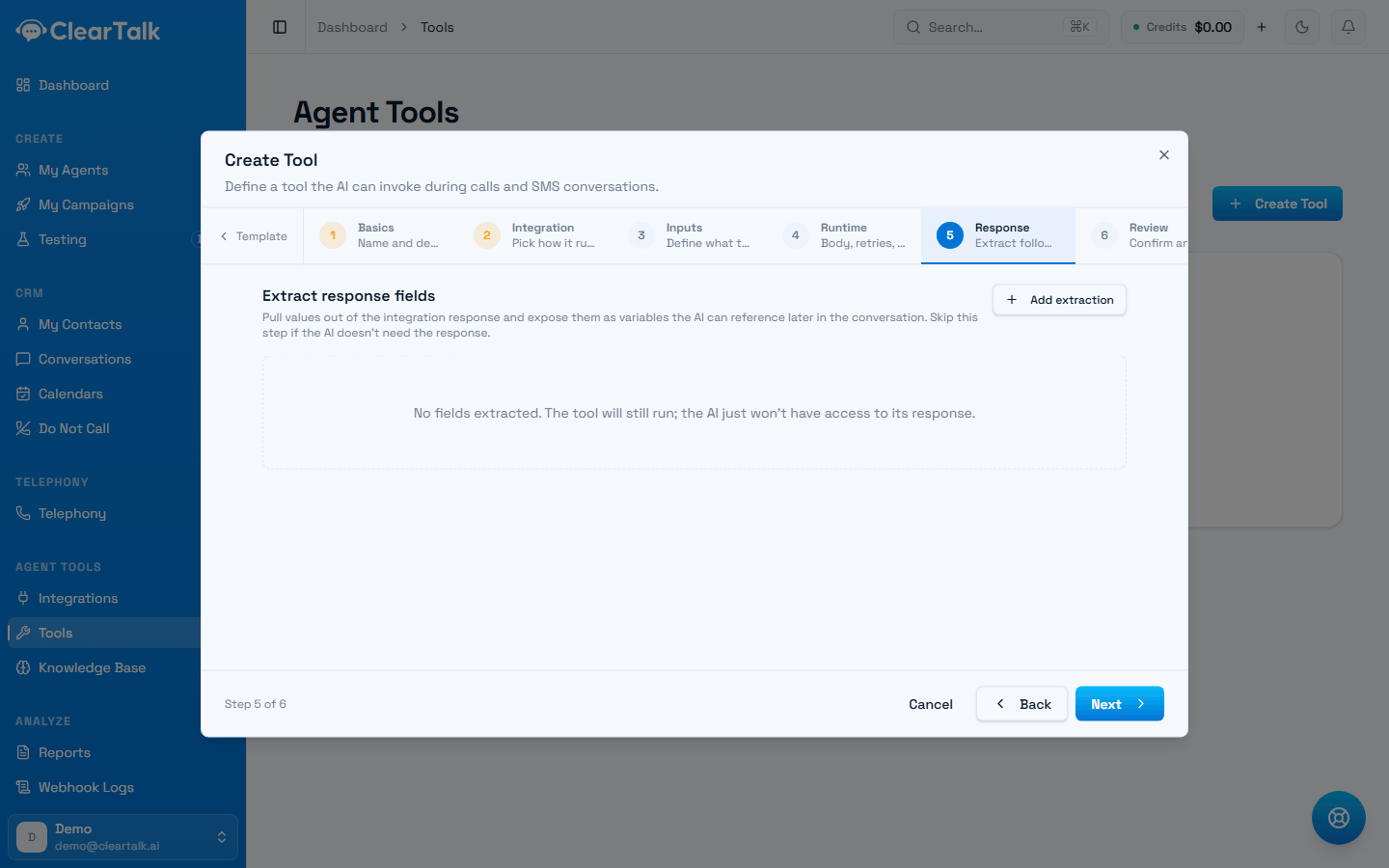
- 1Add one extraction per value the agent needs to say or branch on.
- 2Left empty, the tool fires and forgets. Right for “notify the team”, wrong for a lookup.
Step 6 — Review
Check it over and save. The tool is now available everywhere in your account.
Put it to work
On an agent: open the agent, add this tool, and it can use it whenever an order question comes up.
In a Pathway: add a Custom Tool step and choose it. Now branch on what came back — this is where a tool becomes genuinely powerful:
statusis shipped → give the delivery date, offer to text the tracking linkstatusis delayed → apologise, offer a callback- nothing found → check they have the right number, then transfer to a person
Always build that last path. Records go missing and systems go down; the agent needs somewhere to go that isn't silence.
Test it before a customer does
Put the tool in a pathway and write a test for each outcome — an order that exists, one that doesn't, one that's delayed. A simulated caller will find a bad parameter description or a missing branch in seconds. See Testing your pathway.
When it doesn't fire
Nearly always one of three things, in this order of likelihood:
- The description is too vague. The agent didn't recognise the situation. Make it more specific about when to use the tool.
- Another tool overlaps. Two tools with similar descriptions confuse the choice — sharpen both, or merge them.
- A parameter can't be filled. The agent has no way to get what you asked for. Either the conversation needs to collect it earlier, or the parameter shouldn't be required.