
Availability and connected calendars
Setting your weekly hours and time zone, and connecting Google, Outlook, or Calendly so agents never book over something you already have.
A schedule is when you can be booked. It's the first thing to set up, because event types can't exist without one — ClearTalk will send you here first if you try.
Setting your weekly hours
Under Calendars → Schedule, give the schedule a name and pick its time zone. Then set the hours you're available on each day. Days you leave off are marked Unavailable.
The time zone is the schedule's, not the customer's. Every time you enter is local to it. If your business is in Denver and the schedule says 9:00–17:00 with a Denver time zone, that's Denver's nine to five — regardless of where the person booking is calling from.
Multiple windows in one day
Each day can have more than one window. Add a second one to model a real working day rather than a theoretical one:
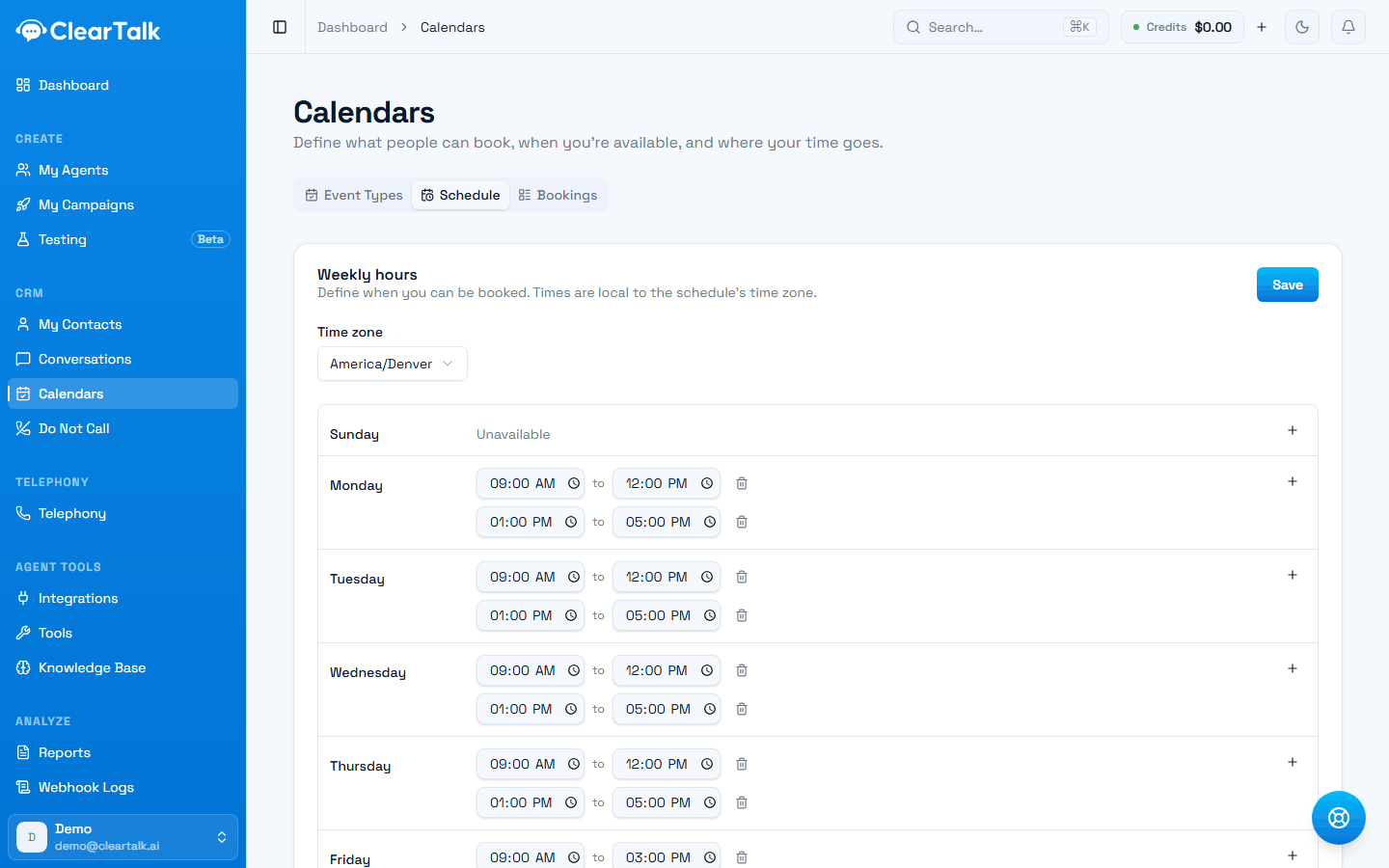
- 1The time zone every time below is read in. Get this wrong and every booking lands an hour out.
- 2Two windows on one day is how you close lunch. Add the second with the + on the right.
- 3Friday finishes early — one window instead of two.
- 4Days with no window read as Unavailable and are never offered.
| Day | Windows | What it models |
|---|---|---|
| Monday | 09:00–12:00, 13:00–17:00 | Lunch is closed |
| Wednesday | 09:00–12:00 | Half day |
| Friday | 09:00–15:00 | Early finish |
| Saturday | Unavailable | Closed |
Leave real gaps
The most common mistake is publishing your full working day as bookable, then discovering the agent has filled it. Your calendar should reflect the time you're genuinely willing to hand to whoever books first.
Connecting your existing calendar
Under Integrations → Calendar, you can connect Outlook, Google, or Calendly. Once connected, anything already on that calendar blocks the matching time in ClearTalk.
- 1
You connect the calendar
One-time sign-in under Integrations → Calendar.
- 2
Your events are mirrored
ClearTalk keeps a picture of when you're busy — not what the events are.
- 3
Busy times are removed from the offer
When an agent looks up open slots, anything overlapping a busy event is already gone.
- 4
It's checked again at booking time
The same check runs when the appointment is actually written, so a meeting added mid-call still blocks it.
Two details worth knowing:
- Only events marked busy block a slot. Anything you've set to "free" or "show as available" is ignored, which is exactly what you want for all-day informational events.
- Disconnecting stops the blocking. If you disconnect an account, its events no longer block anything — slots that were hidden become bookable again.
Connect every calendar that holds real commitments
If your team books meetings in a personal Google calendar that isn't connected, ClearTalk has no idea those times are taken. It will happily offer them. The connection is what makes availability true rather than theoretical.
Buffers, notice, and limits
Some availability rules belong to the event type rather than the schedule, because they depend on what's being booked:
- Buffer before / after — protected time around each appointment
- Minimum notice — how far ahead someone must book
- Maximum advance — how far into the future bookings are allowed
- Daily limit — the most of this event type in one day
All four are covered in Event types.
What the customer actually gets offered
A slot has to survive every one of these to be offered:
- 1
Inside your weekly hours
In the schedule's time zone.
- 2
Not already booked
Existing ClearTalk bookings are removed.
- 3
Not blocked by a connected calendar
Busy events from Google, Outlook, or Calendly.
- 4
Clear of buffers
Space either side of neighbouring appointments.
- 5
Inside the notice window
Far enough ahead, and not too far out.
Use this as your checklist when nothing is available
If the agent says it has nothing open, work down this list. Nine times out of ten it's a time zone that isn't what you thought, or a connected calendar full of all-day events marked busy.
A setup that works for most businesses
- One schedule, named after the business, in the time zone your team actually works in.
- Real hours, with lunch closed and any half-days modelled properly.
- Every team calendar connected that holds commitments an agent must not book over.
- Book something yourself through an agent, then check it landed where you expected, at the time you expected.
That last step catches time zone mistakes before a customer does.