
Booking in conversations
How an agent offers times and books them mid-call or mid-text — what to turn on, how time zones are decided, and why bookings fail.
Turning an agent into one that books appointments takes one switch. Understanding what happens after that switch is what stops you debugging it later.
Turning it on
On any agent form — inbound, outbound, or texting — open the Calendar section and switch on Appointment Agent. Then choose:
- Calendar source — a ClearTalk calendar or a CRM calendar. The CRM option only appears if you have one connected.
- The specific calendar — an event type for ClearTalk, or a named calendar from your CRM.
- Time zone handling — voice agents only, covered below.
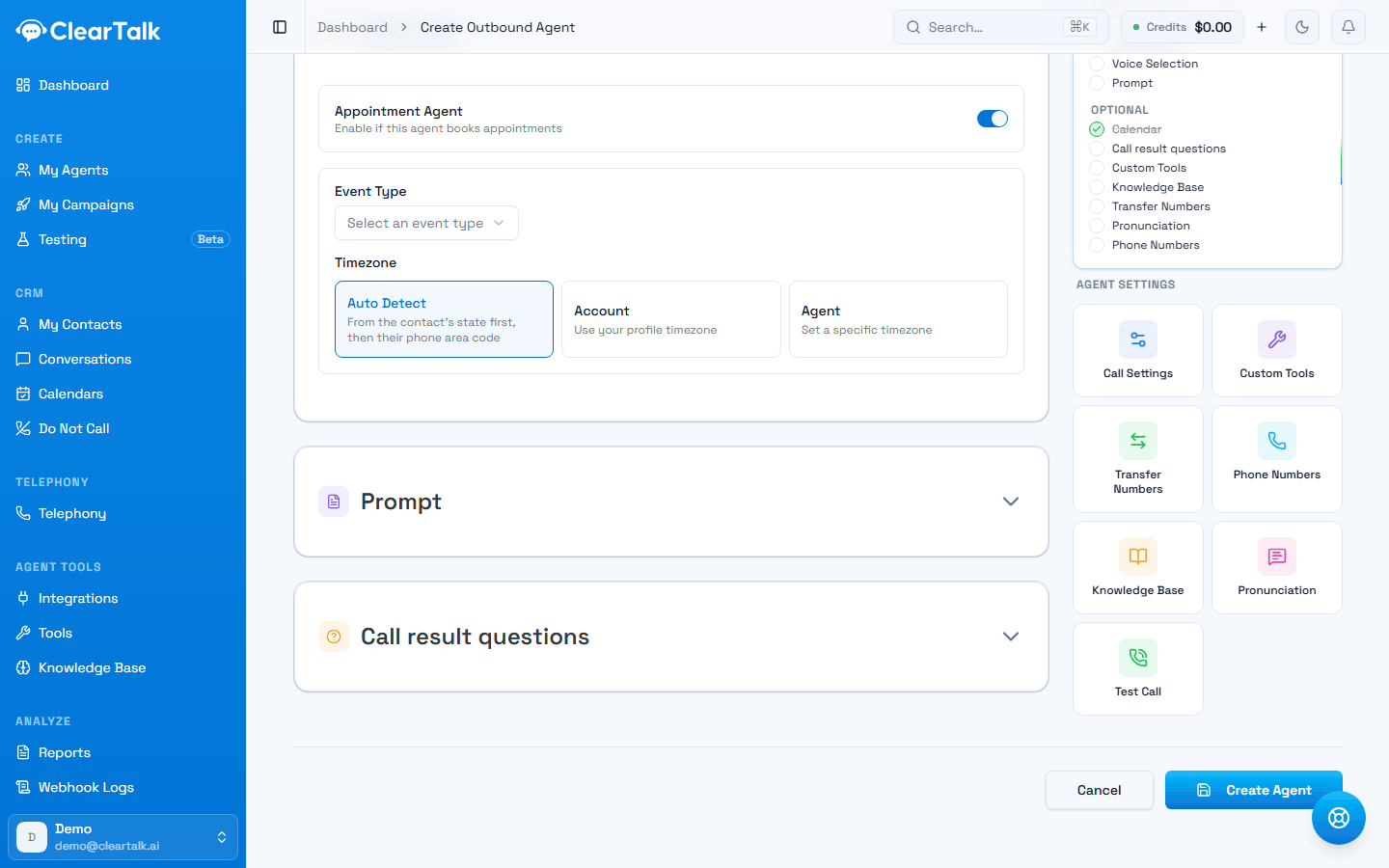
- 1The switch. Everything below appears once it's on.
- 2Which calendar. On a ClearTalk calendar this is an event type; a connected CRM adds its own.
- 3Time zone handling — voice agents only. Texting always uses your organization's.
That's the whole setup. The agent's ability to look up times and book them is created and kept in sync for you.
You don't build these as custom tools
Appointment booking isn't something you wire up in the Tools section. It's provisioned from the calendar you bound here. If you see appointment abilities on an agent you didn't create by hand, that's why.
What happens during the conversation
- 1
The customer raises booking
Either the agent brings it up because that's the job, or the customer asks.
- 2
The agent looks up real availability
It says something like “Let me check what times are open” while it does. Every rule — your hours, buffers, notice, daily limits, connected-calendar busy times — is applied before anything is offered.
- 3
It offers a couple of times
Two or three, not a list of twelve. A long list on a phone call is unusable.
- 4
The customer picks and confirms
The agent confirms the specific time back before committing. Nothing is booked on a maybe.
- 5
It books and reads back the confirmation
The appointment is written and linked to this conversation and this contact.
The agent never offers a time it hasn't verified. Availability is looked up live, and checked again when the booking is written — so a slot that got taken mid-conversation is caught rather than double-booked.
Time zones
This is where booking goes wrong most often, so it's worth being precise.
Voice agents offer three options:
| Setting | Behaviour | Use when |
|---|---|---|
| Auto Detect | The contact's own time zone, from their phone number's area code. If that can't be read, your organization's time zone, then the calendar's own | You call across time zones |
| Account | Your profile's time zone | Everyone you deal with is local to you |
| Agent | A fixed time zone you pick | The agent serves one region that isn't your own |
Texting agents always use your organization's time zone. A text conversation carries no live signal of where the recipient is, so the choice isn't offered rather than shown and quietly ignored.
Auto Detect is a good guess, not a fact
Area codes follow people when they move. Someone with a New York number living in Phoenix will be offered New York times. If exact local time matters — a site visit, a same-day appointment — have the agent confirm the time zone out loud as part of confirming the slot.
When a booking doesn't complete
Two things can go wrong, and the agent handles both by continuing the conversation rather than failing silently.
Missing details. If the agent doesn't have enough to book — usually a name — it's told what's missing and asks for it, then tries again.
The slot was taken. If someone else booked that time between the lookup and the commit, the agent is told and offers a different time. The customer experiences a small hiccup, not a broken booking.
What gets recorded
A booking made in a conversation carries its origin. On the Bookings tab, the Source column shows how each one arrived:
- AI voice — booked by an agent on a call
- AI SMS — booked by an agent over text
- Self-serve — booked by the customer directly
- Manual — added by your team
Bookings from a conversation are also linked back to the call or thread and to the contact record, so you can open a booking and read the conversation that produced it. That link is the fastest way to answer "why did they book this?" — and the fastest way to spot an agent booking people it shouldn't.
Common problems
| Symptom | Usual cause |
|---|---|
| "I don't have anything available" on an open calendar | The schedule's time zone isn't what you assumed, or a connected calendar is full of all-day busy events |
| Books at the right clock time, wrong actual time | Time zone mode — check whether Auto Detect is guessing from an area code |
| Books outside your working hours | The event type is on a different schedule than you think |
| Books too close to now | No minimum notice on the event type |
| Books more than you can service | No daily limit on the event type |
| Never brings booking up | Your pathway or instructions never tell it to |
That last one catches people out. Turning on Appointment Agent gives the agent the ability to book. Your pathway or agent instructions still have to tell it when to.
Testing it before customers see it
Book an appointment through the agent yourself, end to end, and then check three things:
- It landed on the right calendar.
- It landed at the right actual time — not just the right numbers on a clock.
- The confirmation the agent read back matches what got written.
If you're on a pathway, you can run this as a simulated test without spending a call.