
Publishing and versions
Edit safely while the live version keeps answering calls, then publish when you're ready — and roll back if you need to.
Every pathway has two sides: the one you're editing, and the one answering real calls. They are not the same thing, and that's deliberate.
Saving is always safe. You can leave a pathway half-rebuilt over a weekend and Monday's callers hear exactly what they heard on Friday. Only Publish changes what live calls follow.
Two views, one pathway
The builder has a toggle between them:
- Staging — your working copy. Edit it freely, save as often as you like. Nothing here affects live calls.
- Production — the version currently answering calls. It's read-only, because a half-finished edit should never be able to reach a customer.
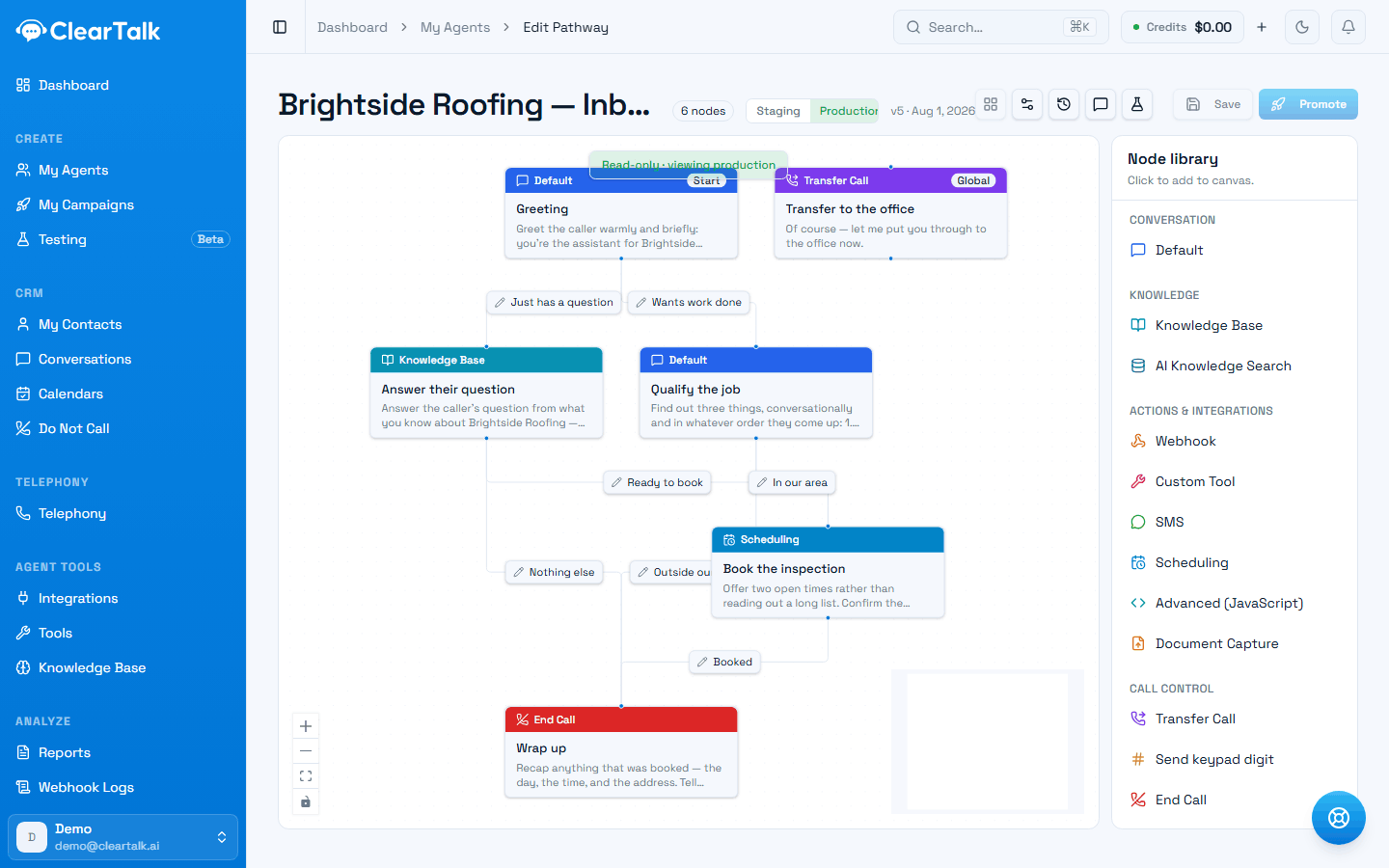
- 1The toggle. Production is greyed out until you've promoted at least once.
- 2Which version is live, and when it went live.
- 3Read-only, by design — you cannot accidentally edit what's answering calls.
So saving is safe. Saving is always safe. You can leave a pathway half-rebuilt over a weekend and Monday's callers hear exactly what they heard on Friday.
Staging
Your working copy
- Edit and save as often as you like.
- Test Chat and your tests run against this side.
- No effect whatsoever on live calls.
Production
What answers real calls
- Read-only — a half-finished edit can never reach a customer.
- Changes only when you click Publish.
- Every version can be published directly — a one-click way back.
Publishing
When staging is ready, click Publish. That takes a snapshot of your work and makes it the live version. From that moment, new calls follow the new version.
Before you publish, it's worth a quick pass:
- Walk the main path in Test Chat one more time.
- Check that every path reaches an ending.
- Run your tests — and if any test is marked Required to publish, the builder will warn you before letting a failing pathway go live. See Testing your pathway.
Version history
Every save is kept as a version — not just every publish. Click Versions in the toolbar to open the history panel, listing versions newest first with who saved it, when, and an optional name and note:
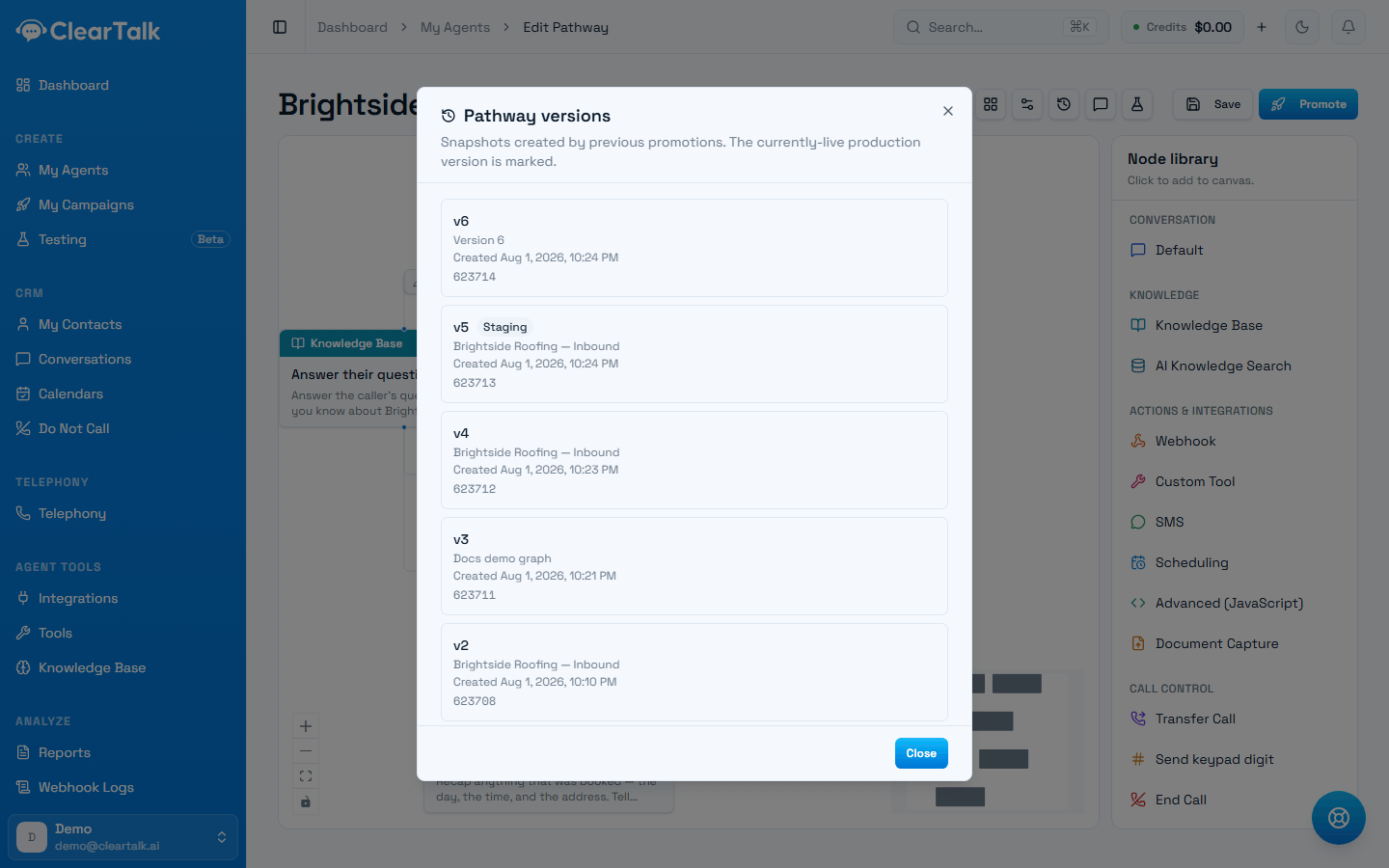
- 1The version the builder is currently editing.
- 2Names and timestamps — this is your record of what changed when.
Two badges tell you where a version stands: Staging marks the one you're currently editing, Production marks whichever is answering calls right now. Neither, either, or both can land on the same row.
Each version gives you three things to do with it:
- View opens it read-only, without disturbing what you're currently editing.
- Restore brings it back as your staging version. This does not rewind — restoring mints a brand-new version carrying that old content, so nothing already in the history is lost, and the restore itself becomes a new entry you could undo the same way.
- Publish to production sends that version live immediately, whether or not it's your current staging version. This is how you roll back: find the last version you trust and publish it directly, without rebuilding it on the canvas first.
Both restore and publish ask you to confirm first — publishing warns that calls start using it immediately.
Restore doesn't erase anything
Restoring an old version doesn't throw away the work you have now. It copies the old content into a new version on top of your history, so your current staging state is still sitting right below it if you change your mind.
Want a version to carry a name? Before you save, click the tag icon next to Save to add a short name and note — "after-hours branch," "fixed the insurance question." Plain Save still works with one click; naming is optional and only takes effect on the save you attach it to.
Versions from before history was tracked
A pathway that existed before this feature has a Before version history group at the bottom of the list. Those are read-only: you can view one, but you can't restore it, because document-capture settings and knowledge-base references from that era weren't kept alongside them.
Working on a busy pathway
For one taking live calls all day:
- Make one change at a time. If quality drops, you'll know what did it.
- Publish at quiet hours where you can. A mid-conversation switch is safe — calls in progress finish on the version they started with — but you'd still rather learn about a mistake at 7am than during your busiest hour.
- Watch the first calls afterwards. Open Conversations, read a handful of transcripts, confirm it sounds like you intended.
- Keep a note of why, not just what. "Added the insurance question because 30% of callers asked" is worth far more in three months than a diff.
Global settings
Alongside the canvas, a pathway has its own settings: its name, a description, and instructions applied to every step. That last one is the right home for rules that shouldn't be repeated fifteen times — how the agent should sound, what it must never promise, the business name. Changing them affects everything, so they follow the same staging-and-publish rule as the canvas.