
Contacts and lists
Importing contacts from a CSV, how lists, tags, and statuses differ, and what a contact record actually holds.
Contacts are the people your agents talk to. If you run Batch Calls campaigns they're essential; if everything you do is triggered from a CRM you may barely touch this screen. Either way it's where conversation history collects.
Importing a CSV
My Contacts → Upload CSV. There's a template with the right headers and an example row — use it the first time, it saves a round trip.
- 1
Drop your file in
Any .csv. ClearTalk reads the header row and shows you how many rows it found.
- 2
Match your columns
It guesses the obvious ones. Fix anything wrong, and set columns you don't want to “Don't import”.
- 3
Review what will and won't import
Rows that can't be imported are listed with a reason, and you can download them to fix separately.
- 4
Import
The good rows go in. The bad ones don't silently disappear — you have the file.
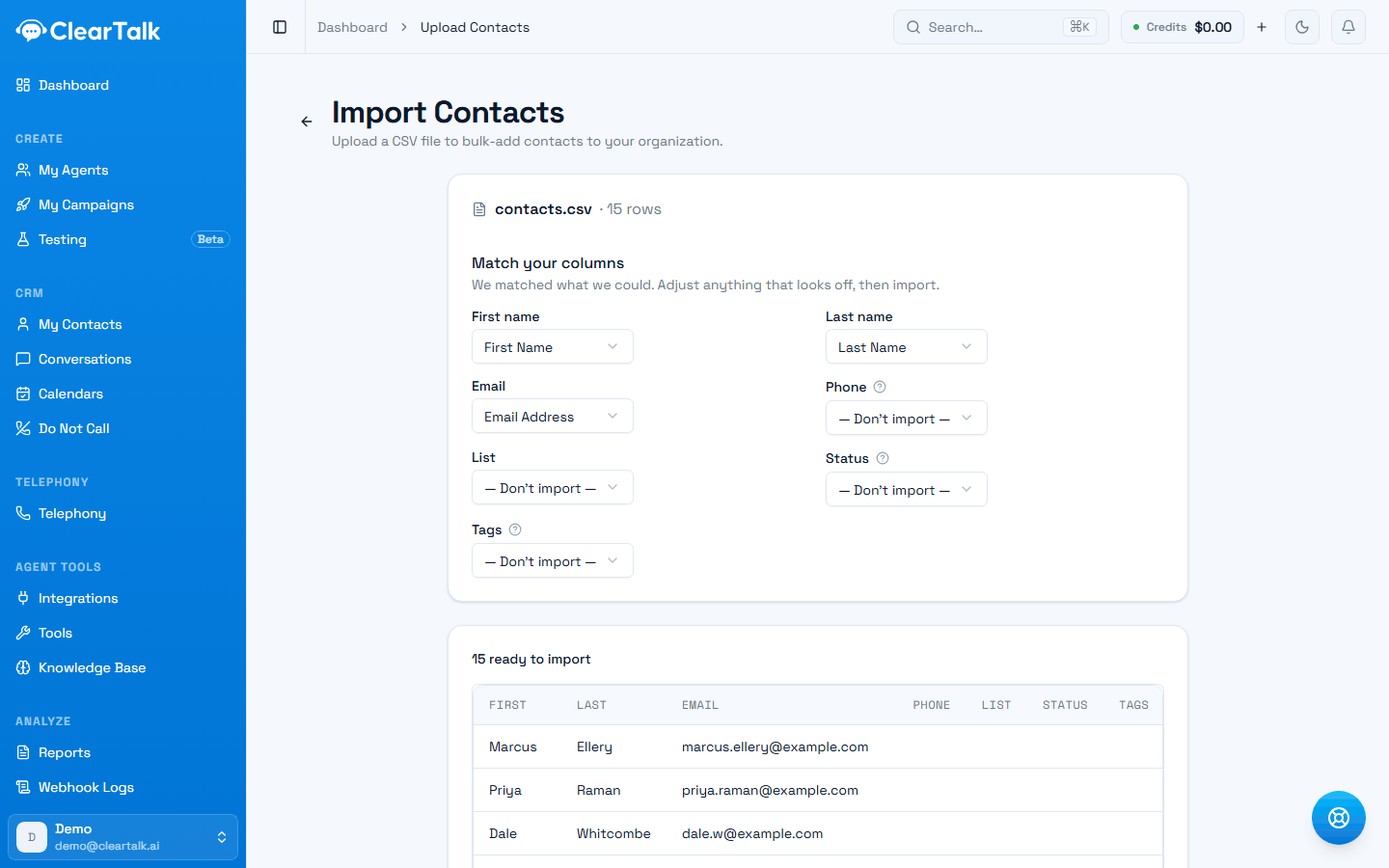
- 1Matched automatically, because the header was close enough to the field name.
- 2Not matched. This file calls the column “Mobile Phone”, so it defaulted to Don't import — and every contact would arrive with no number.
- 3The preview reflects the mapping above. If a column is blank here, fix the dropdown before importing.
Check the Phone row before you import
The matching step exists so you can import a CRM export as-is — but it doesn't recognise every header. Mobile Phone, Cell, and similar variants are left unmatched, and a contact imported without a number can't be called or texted. It's the one row worth checking every time.
Every contact needs at least one identifying column — first name, last name, email, or phone. In practice, phone is the one that matters.
Re-importing does not merge
Importing the same file twice creates a second copy of every contact — matching on email or phone doesn't dedupe them. If you got a mapping wrong, fix the contacts you imported rather than re-uploading the corrected file on top.
Rows that get skipped
Download the skipped rows rather than ignoring them. The usual causes are worth knowing:
| Reason | Fix |
|---|---|
| No phone number | Often a header row imported as data, or genuinely blank cells |
| Malformed phone number | Extensions in the same cell, or text like "n/a" |
| Duplicate | Already in your contacts |
Once imported, they land here:
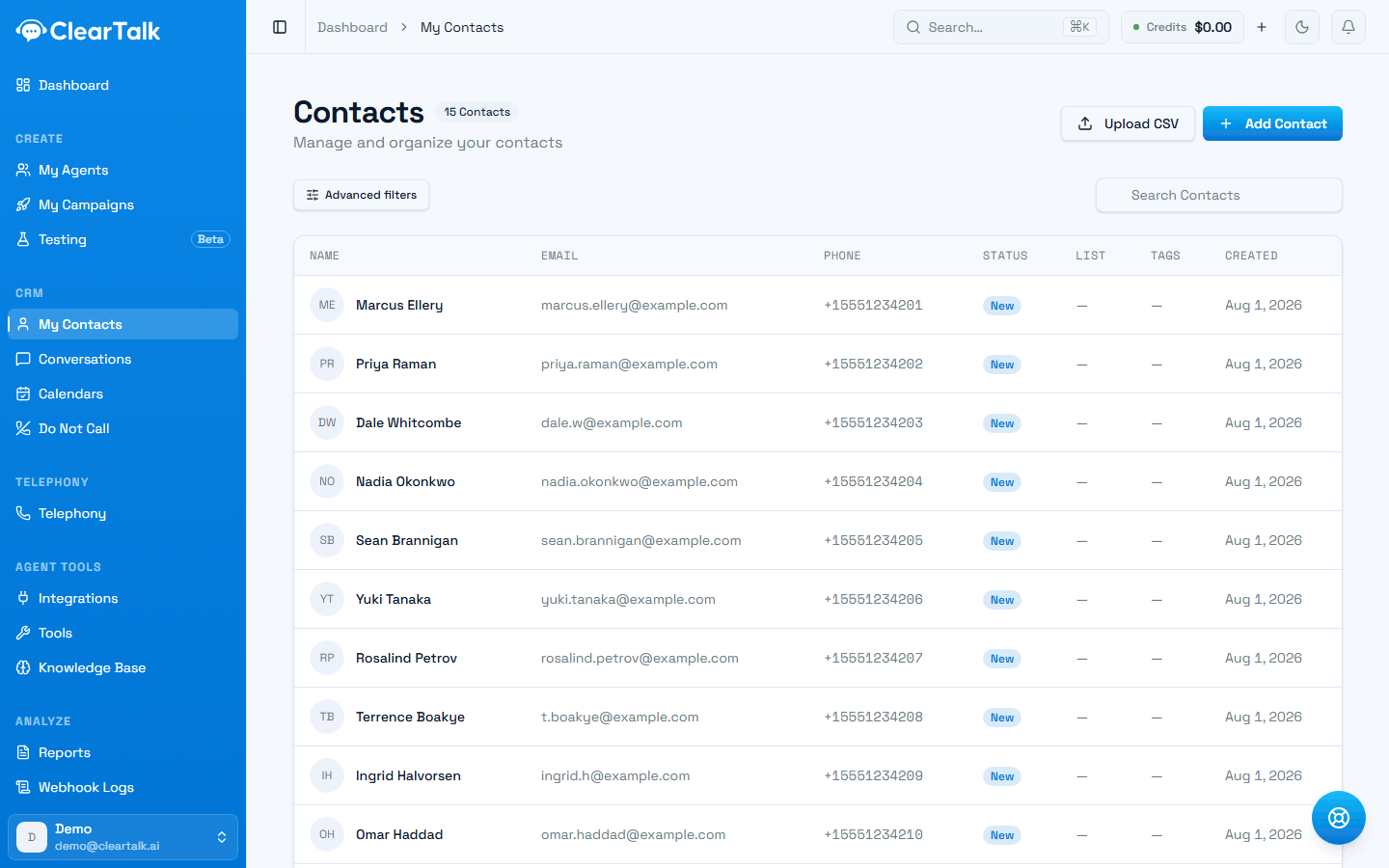
- 1How many you have. Worth checking after an import — a double count means it ran twice.
- 2Add one by hand, or bring in a CSV.
- 3Filter by list, tag, status, or when they were added.
Lists, tags, and statuses
Three ways of organising contacts that people routinely confuse. They do genuinely different jobs.
List
One per contact
- Where the contact came from — usually the import or campaign.
- Set once, at import.
- Answers: “which batch was this?”
Tags
As many as you like
- Free-form labels you add to organise however you want.
- Added and removed any time.
- Answers: “which of these do I care about right now?”
Status is the third: where a contact sits in your workflow — new, active, customer, and so on. One per contact, and it moves as the relationship does.
Use lists for provenance, tags for segmentation, and status for progress. The most common mistake is using tags for all three, which works until you have forty tags and no idea which ones mean anything.
The contact record
Opening a contact shows their details, their tags and status, and — the useful part — a timeline of every conversation you've had with them, across calls, texts, chatbot, and web sessions.
This is the single best screen for answering "what actually happened with this person?" before someone follows up manually. If an agent called them twice and they asked to be called back next week, it's here.
Contacts and campaigns
Batch Calls campaigns dial contacts stored here — that's what they're for. You can point a campaign at a specific tag rather than the whole list, and have it tag everyone it contacts, which gives you a clean way to exclude them from the next campaign.
Outbound Calls and Text Messages campaigns are triggered from outside, so the contact details arrive with the trigger. Those people still get contact records — you just don't need to import them first.
Contacts in a connected CRM stay there
If you have a CRM connected, its contacts aren't mirrored into this screen, and Batch Calls can't dial them. Either import them here, or drive the campaign from the CRM with a triggered campaign instead. See Triggering a campaign.
Two lists you should know exist
The Do Not Call page in your sidebar holds two suppression lists, both of which override everything else:
- Do Not Call — numbers that are never dialed. See The Do Not Call list.
- Blocked from Texting — numbers that opted out of texts. See Opt-outs and blocked numbers.
Neither is optional and neither can be bypassed by a campaign. That's the point of them.
Keeping the list worth calling
Import quality drives everything downstream — answer rates, complaint rates, and eventually whether your numbers get flagged. List hygiene covers what to remove before you dial and how to keep a list clean over time.