
Agents on your website
The chatbot and the web agent — what each one is, when to use which, and how to put them on your site.
Two agents live on your website rather than on a phone number. They look similar in the sidebar and do quite different jobs.
Chatbot
Text chat in a widget
- Visitors type; the agent replies in text.
- Always driven by a pathway.
- Floating bubble or mounted inline on the page.
- Quick actions can link out to a phone number, email, or booking page.
Web agent
Voice call in the browser
- Visitors talk; the agent talks back.
- Driven by a prompt or a pathway — your choice.
- Card, orb, or full-screen mobile treatment.
- Can book appointments during the call.
Chatbot for questions, web agent for conversations. Someone checking your hours wants to type. Someone deciding whether to book a $9,000 job would rather talk — and will tell you far more in ninety seconds of speech than in a chat thread.
Building a chatbot
Six tabs, and the whole thing is a wizard you can work straight through.
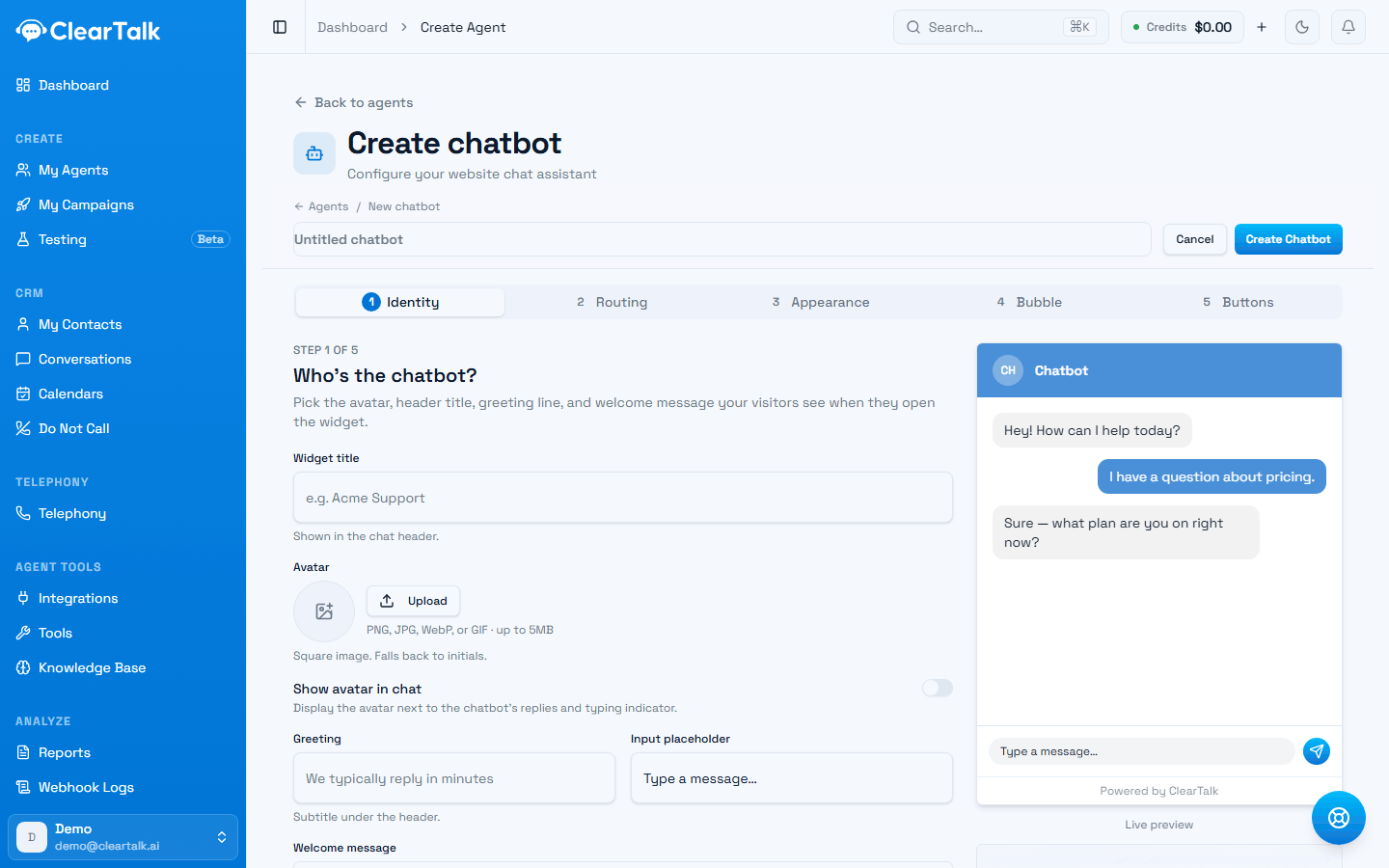
- 1Five steps, worked left to right.
- 2Identity: what appears in the widget's header.
- 3The live preview. Check the greeting reads well before you go near the embed.
Identity — the avatar, header title, greeting line, input placeholder, and the welcome message that appears as the first bubble. The welcome message matters more than the rest: it's what decides whether anyone types at all. "How can I help?" gets less engagement than "Want a price for your postcode?"
Routing — every chatbot is backed by a pathway. Pick the one that drives replies. You can also point an events webhook at your own system.
Appearance — embed mode and the colours. Floating bubble launches on top of the page; inline mounts the chat into a container you place. Inline adds layout controls for the on-page panel.
Bubble — the icon, position, size, and whether the widget opens automatically on page load.
Buttons — persistent quick actions above the input box, linking to a phone number, an email address, a booking page, or any URL. These are underused. A "Call us now" button on a chatbot is not an admission of defeat; it's the shortest path for someone who's decided.
Embed — the snippet. Paste it into your site's HTML, just before the closing </body> tag. It loads on every page that includes it.
Auto-open with care
Auto-opening lifts engagement and annoys people, in roughly equal measure. If you turn it on, don't do it instantly — and never on a page someone landed on to find your phone number.
Building a web agent
Also tabbed, and closer to the voice agent forms because it is one.
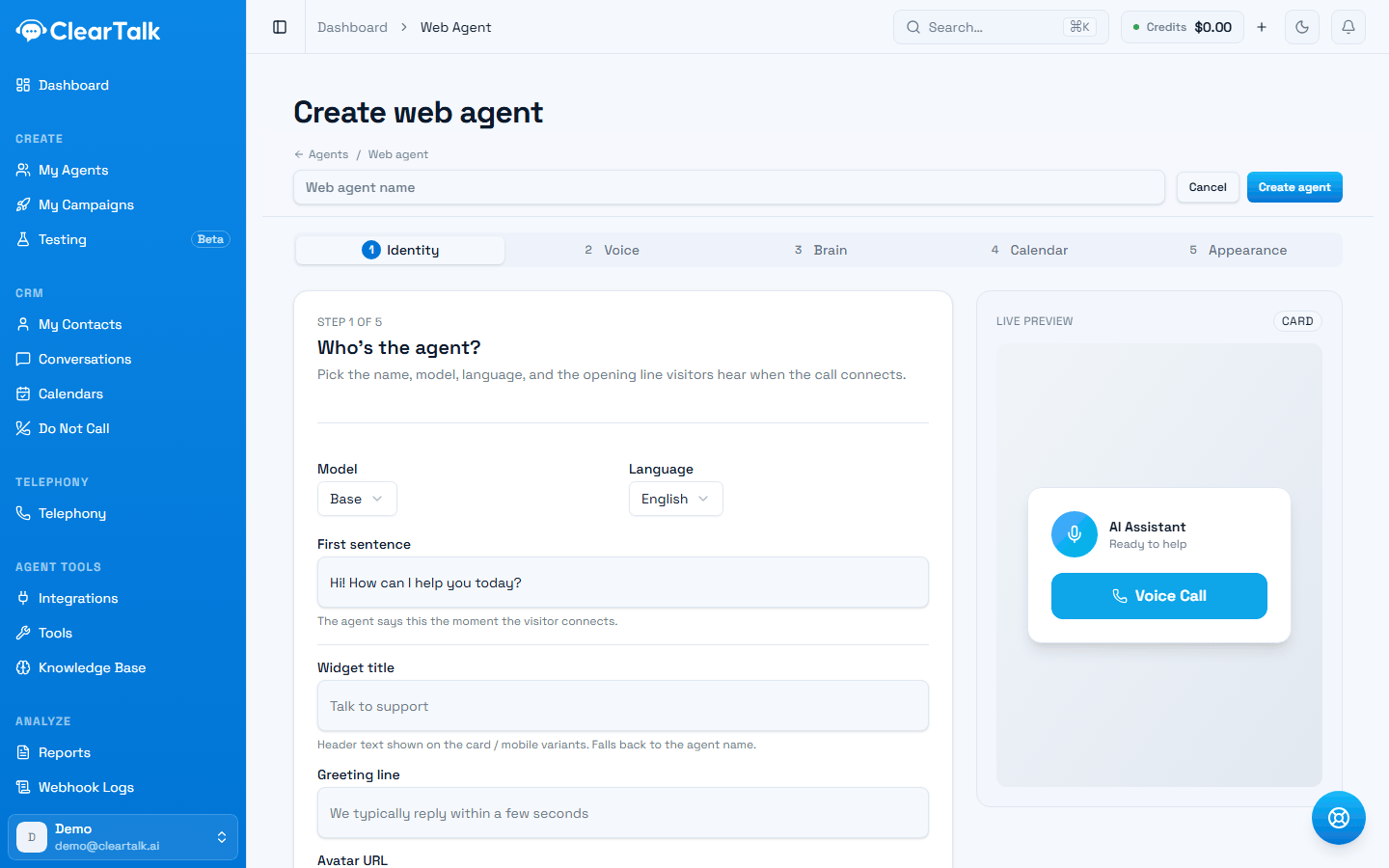
- 1Five steps again, but Voice and Brain replace the chat styling ones.
- 2The first sentence is spoken aloud the moment the visitor connects.
- 3The preview shows the card treatment. Appearance offers the others.
Identity — name, model, language, and the first sentence the visitor hears when the call connects. Also the widget title and greeting shown on the card and mobile treatments.
Voice — which voice it speaks with.
Brain — the same Input Type toggle the phone agents have: a plain-English Prompt, or an attached Pathway. Unlike the chatbot, you're not forced into a pathway here.
Calendar — hook it up to a calendar so it can offer and book time during the call. See Booking in conversations.
Appearance — three on-page templates:
| Template | What it looks like |
|---|---|
| Card | A floating chat card |
| Orb | A pulsing call button |
| Mobile | Full-screen call |
The preview updates live as you tune the colours.
Embed — the snippet. Each template has its own address, so you can run the orb on your homepage and the card on your pricing page.
Which pages to put them on
Not all of them.
Worth embedding on
- Pricing pages — where hesitation happens.
- Service and location pages, where people have specific questions.
- Anywhere a form is the only way to reach you.
- High-traffic landing pages from paid ads.
Usually not worth it
- Your careers page.
- Blog archives.
- Checkout or payment pages, where it's a distraction.
- Every page, indiscriminately.
Testing before you ship
- Load it on a real page, not just the preview. Check it doesn't cover your navigation or a call-to-action.
- Try it on a phone. Most visitors are on one, and a widget that works on a desktop can be unusable on mobile.
- Have the conversation yourself, and read it back in Conversations — website sessions appear there alongside calls and texts.
- Ask it something it shouldn't know, and see what it does. A knowledge base helps here — see Knowledge bases.
Web agents need microphone permission
A browser will ask the visitor for microphone access before a voice conversation can start. Some will decline, and some are on a device where it won't work at all. Make sure there's still a visible way to reach you for people who don't take the call.
What you get back
Both channels record full conversations in Conversations, with the same results and post-conversation analysis as calls and texts. A chatbot session where someone asked about pricing and left is data — and it's usually the most honest feedback about your website you'll ever get.